

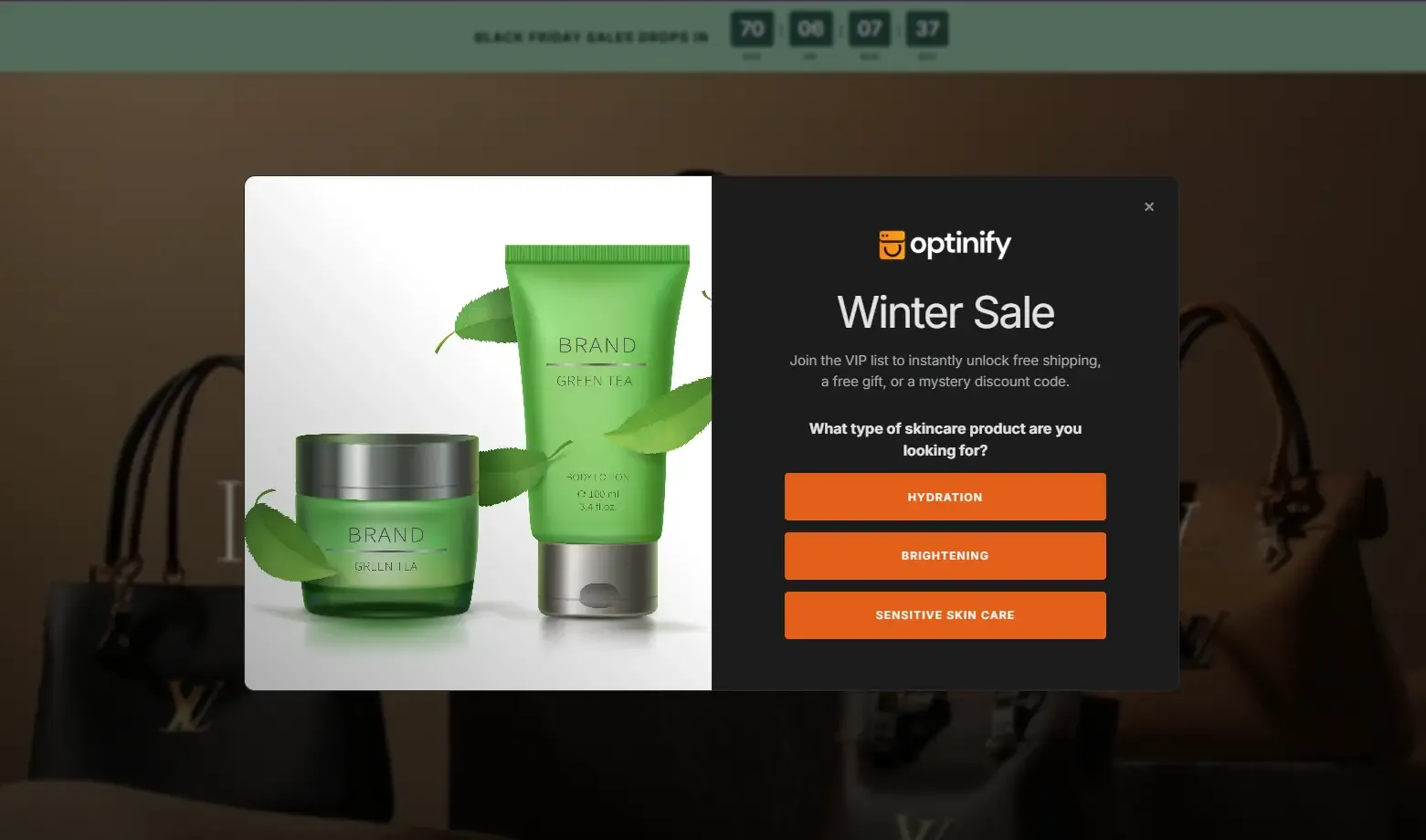
Mini quiz popups help Shopify stores engage visitors, collect customer preferences, and create a more personalized shopping experience. With Optinify, you can create interactive mini quizzes by selecting a quiz template, customizing the popup, and configuring when it should appear to visitors.
Follow the steps below to create a mini quiz popup in Optinify.
Step 1: Open Campaigns Dashboard
First, log in to your Optinify dashboard.
Navigate to the Campaigns section to view your existing campaigns or create a new campaign.
Click Create Campaign to begin setting up your mini quiz popup.
Step 2: Create a New Campaign
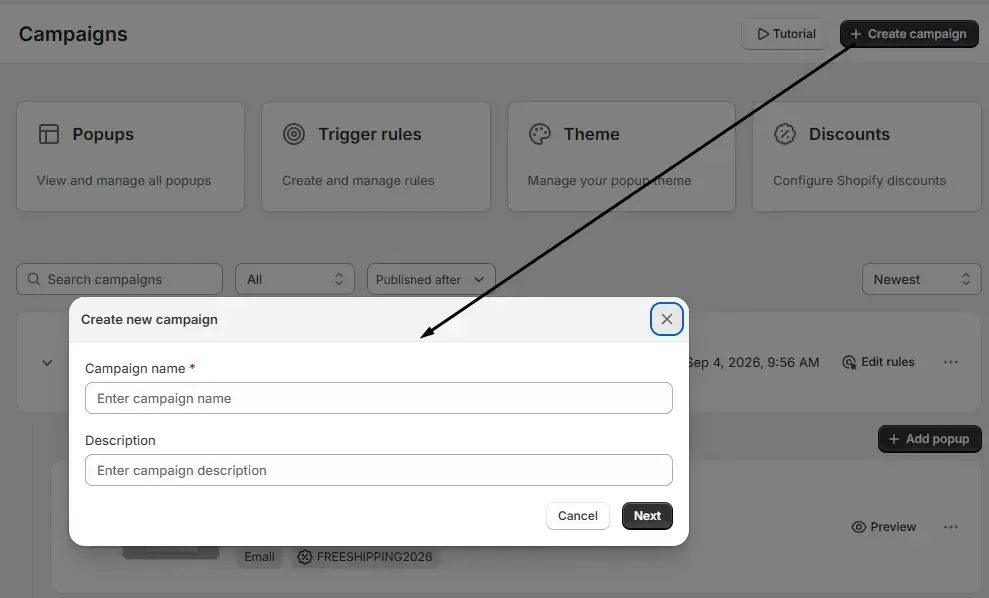
Write down the campaign name and the description. Then click next.
Step 3: Select a Campaign Template
Optinify provides ready-made templates to help you create campaigns quickly.
Choose a template that matches your campaign goal and popup style.
You can use mini quizzes for different purposes, such as:
- Product recommendations
- Customer preference surveys
- Shopping guides
- Lead generation campaigns
Select your preferred template and continue customizing your popup.
Step 4: Customize Your Popup Design
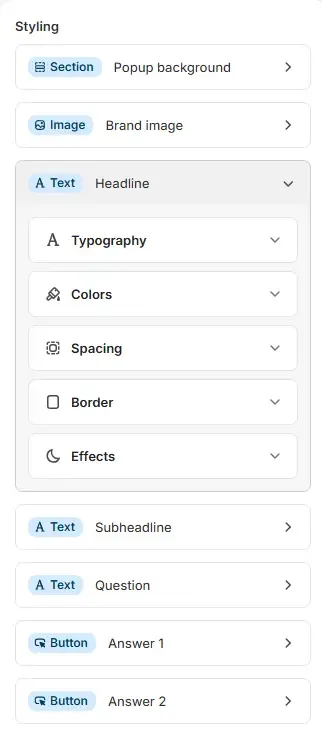
After selecting a template, customize the popup according to your Shopify store branding.
You can modify different design and content elements, including:
- Popup title
- Images
- Colors
- Buttons
- Final message or result screen
Step 5: Select Mini Quiz as Pre-hook
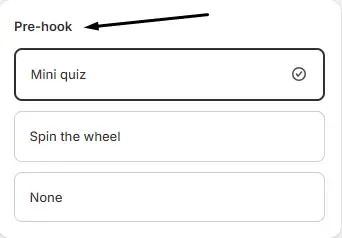
Once your popup design is customized, enable Mini Quiz.
The mini quiz option allows you to add interactive questions and answer choices inside your popup.
Configure your quiz by adding:
- Quiz questions
- Multiple answer choices
Make sure your quiz flow is simple and easy to complete. Short quizzes usually provide a better visitor experience and higher engagement.
For example:
Question: What type of skincare product are you looking for?
Options:
- Hydration
- Brightening
- Sensitive skin care
Step 6: Configure Trigger Rules
After setting up your mini quiz, configure the trigger rules to control when the popup appears.
Trigger settings help you display your quiz at the right moment without interrupting the visitor experience.
You can adjust settings based on your campaign goal, such as:
- Showing the quiz after a specific time delay
- Displaying it after visitors scroll through a page
- Showing it on specific pages
- Targeting specific visitor behaviors
Example:
Campaign: Product Recommendation Quiz
Trigger: Show after visitors spend 15 seconds on a product page
This ensures visitors see the quiz when they are more likely to engage.
Step 7: Publish Your Mini Quiz Campaign
Your mini quiz popup will now be ready to display based on the trigger rules you configured.
Hit the publish button.
Step 8: Monitor Mini Quiz Performance
After your mini quiz campaign starts running, review its performance from the Optinify dashboard.
Analyze important campaign insights, such as:
- Popup views
- Opt-ins
- Performance metrics
- Lead collection results
Use these insights to improve future campaigns by testing different:
- Quiz questions
- Popup designs
- Offers
- Trigger settings
This is how you can create a mini quiz popup campaign using Optinify.