

At first install Optinify from Shopify app store. Once done, you will land in the dashboard.
Steps to configure Optinify with TargetBay
1. Tap on the Option “Integration” and find “TargetBay.”
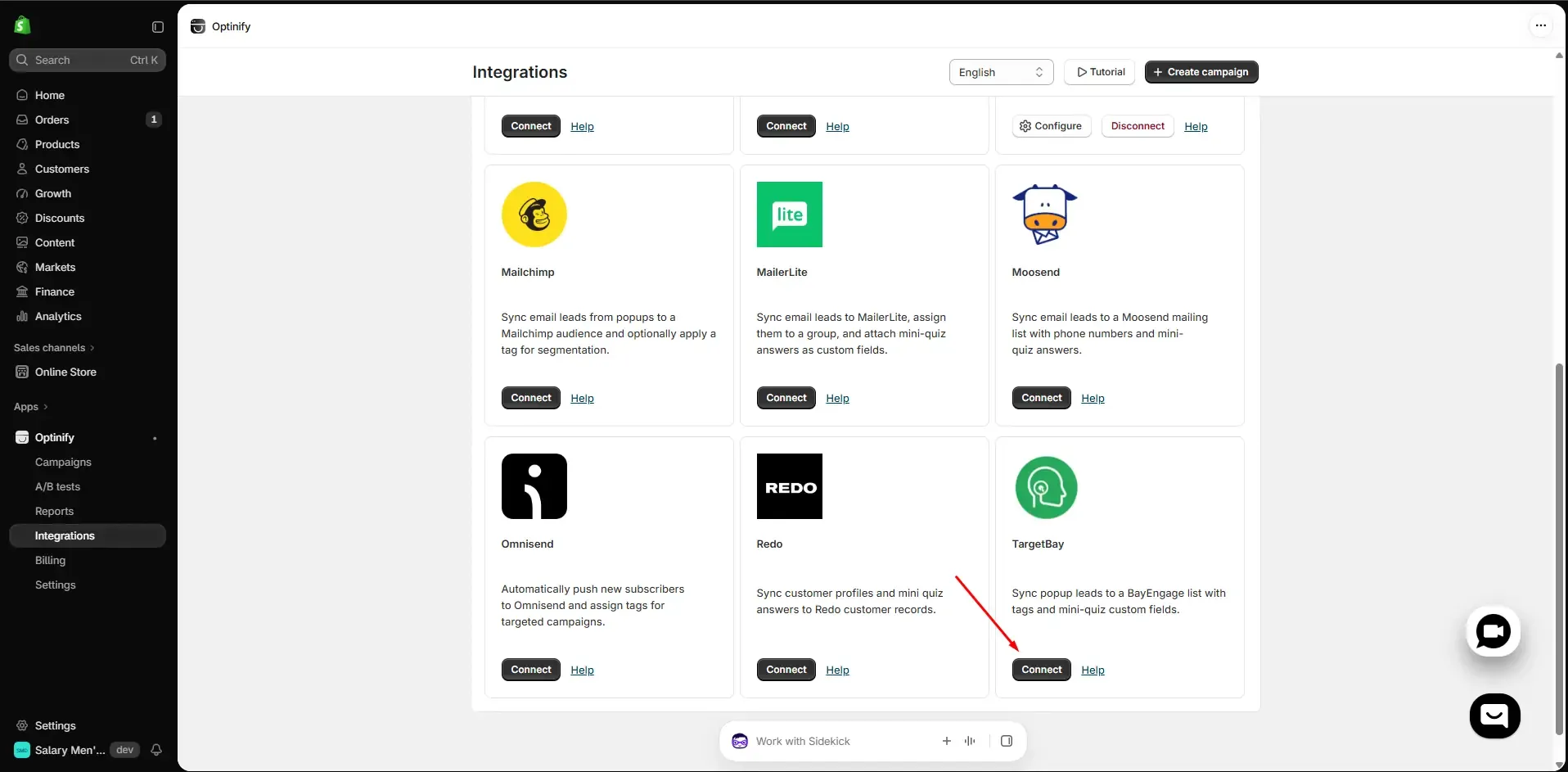
2. Click on “Connect.”
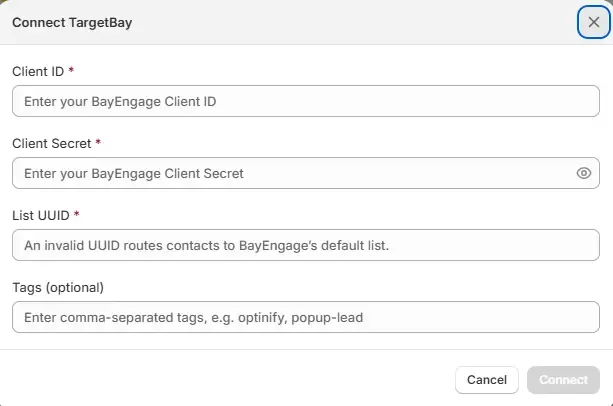
3. Now you need the ‘Client ID’, ‘Client Secret’, ‘List ID’ & ‘Tag (Optional)’.
4. To get all these, sign in to you TargetBay account. Log in to ‘BayEngage.’
5. Click on the top right corner, then ‘API Keys’. Go to VERSION 2.0 and click on ‘Create.’
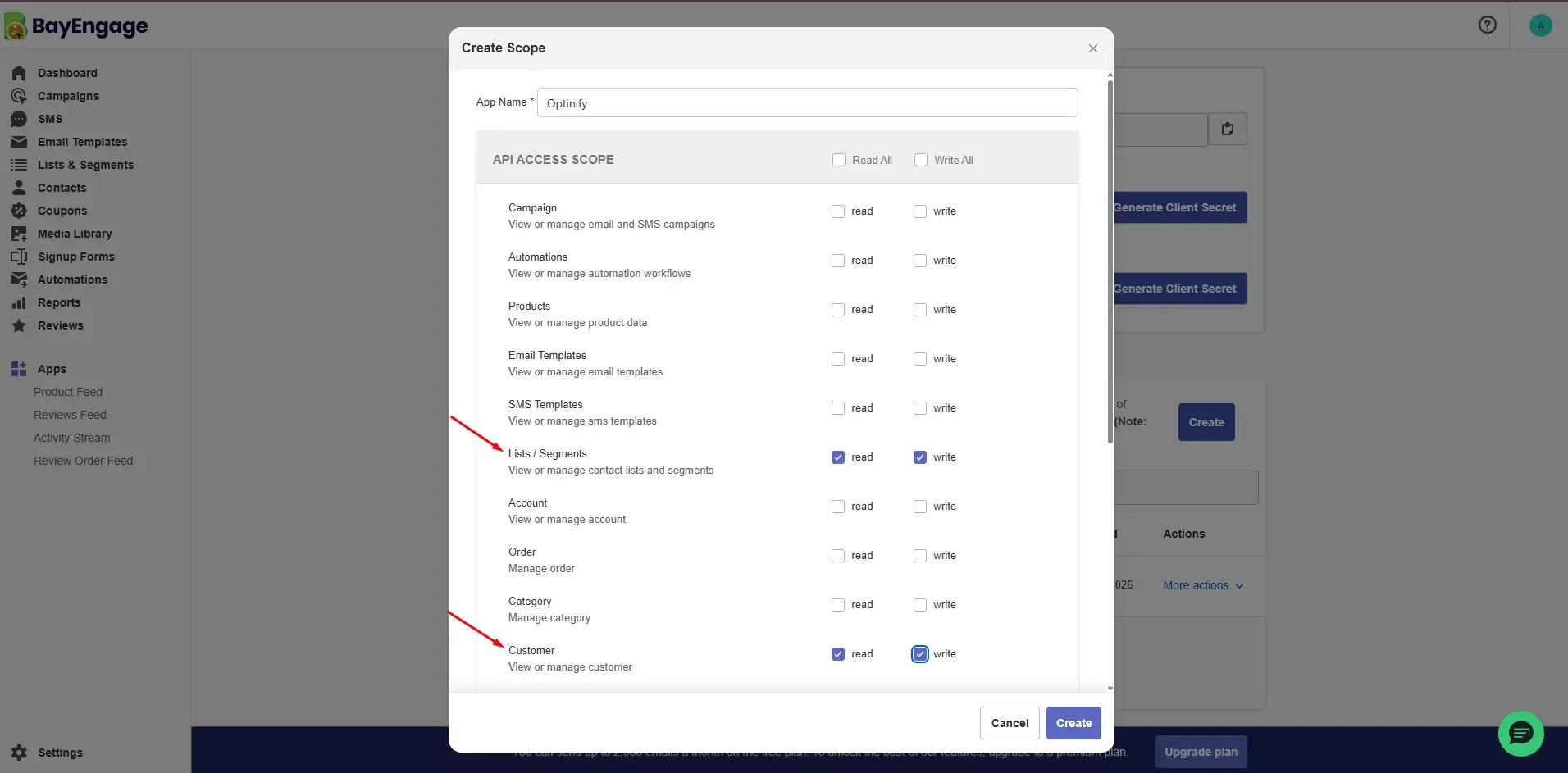
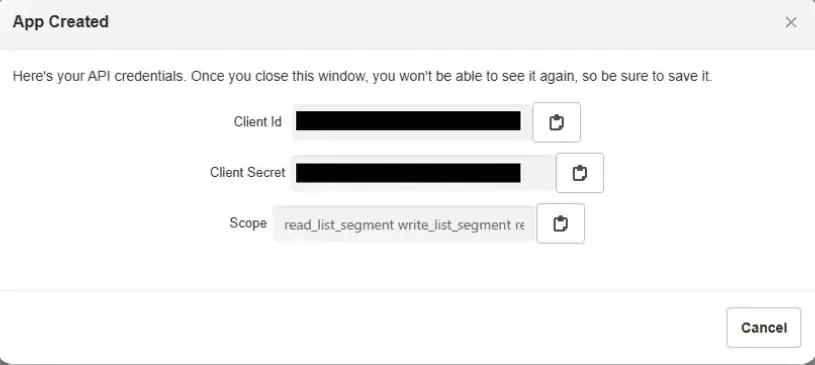
6. Write your ‘App name’ and fill up the segments ‘Lists / Segments’ & ‘Customer’ to ‘read’ and ‘write’ then click ‘Create.’ Copy the ‘Client ID’ & ‘Client Secret’ and paste into Optinify.
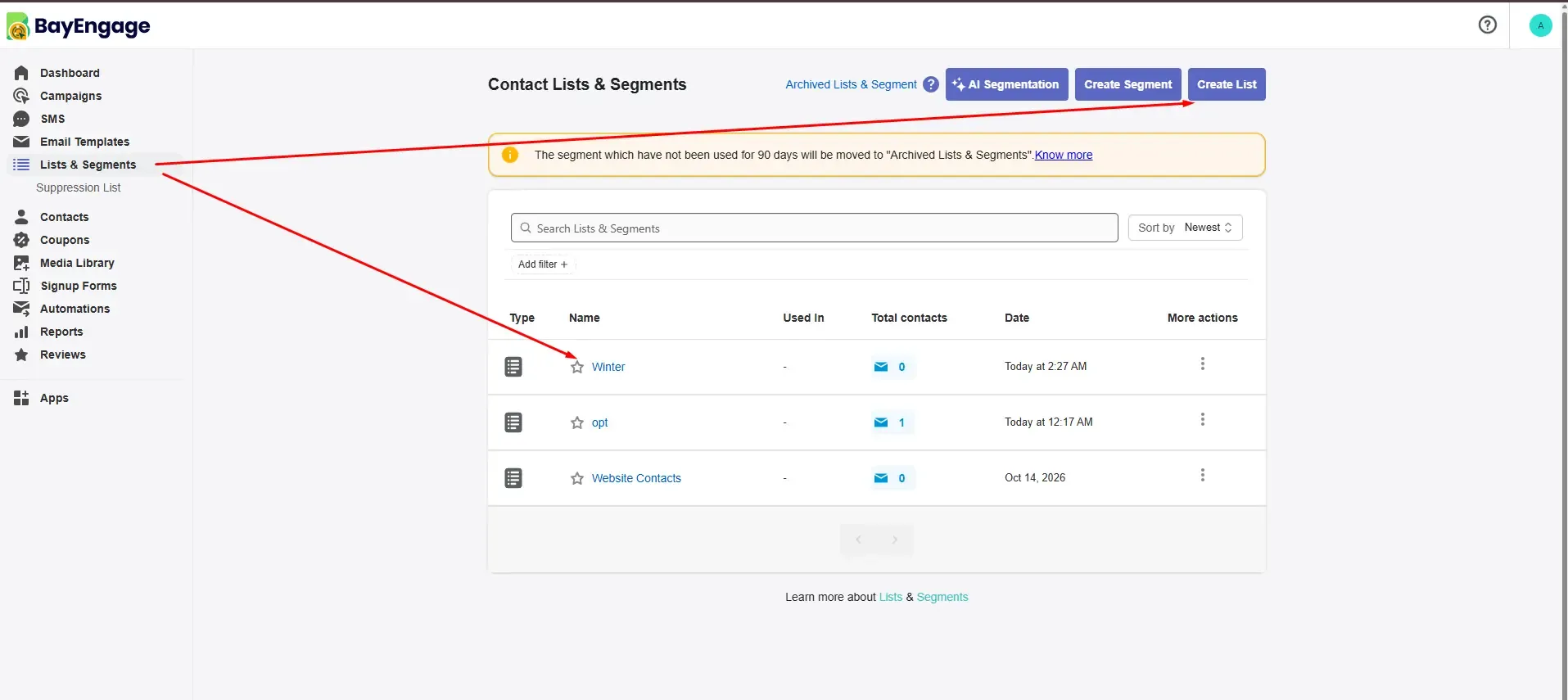
7. Click on ‘Lists & Segments.’ Create a List or go to an existing one then go to “Settings.’ Copy the ‘List ID’ and paste into Optinify.
8. Write a Tag name and paste into Optinify. Click on ‘Connect.’
9. That’s it. You are done with the integration of Optinify with TargetBay.