

At first install Optinify from Shopify app store. Once done, you will land in the dashboard.
Steps to configure Optinify with GoHighLevel
1. Tap on the Option “Integration” and find “GoHighLevel.”
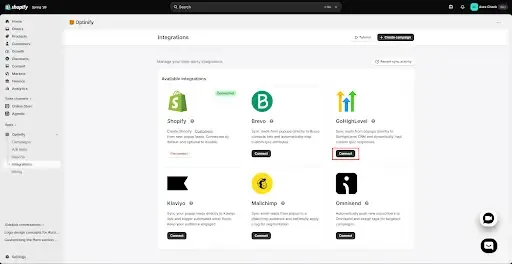
2. Click on “Connect.”
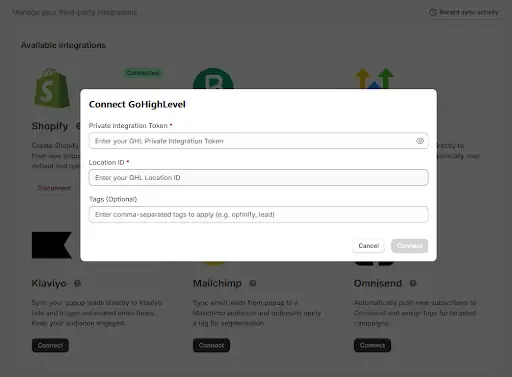
3. You need the “Private Integration Token”, “Location ID” & the “tags” (optional) to get connected. To get all those, sign in to your GoHighLevel account.
4. Now click on “Settings”, then “Private Integrations.” Fill up the name, description & select scopes. (View Location - locations.readonly, View Custom Fields - locations/customFields.readonly, Edit Custom Fields - locations/customFields.write, Edit contacts - contacts.write)
Click create, copy the “Private Integration Token” & paste into Optinify.
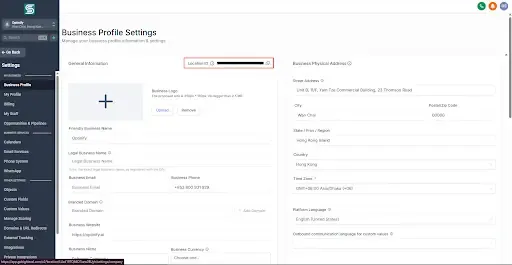
5. To get the “Location ID” tap on “Business Profile”, there you will get the “Location ID.” Copy that and paste into Optinify.
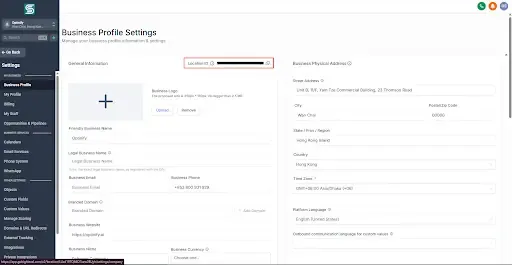
6. Write you Tag name and click connect.
7. That’s it. You are done with the integration of Optinify with GoHighLevel.
Need help to connect GoHighLevel?
Schedule a call. We are just a call away.
Human Support • Setup in 60 seconds • Free 14-day trial
What to read next
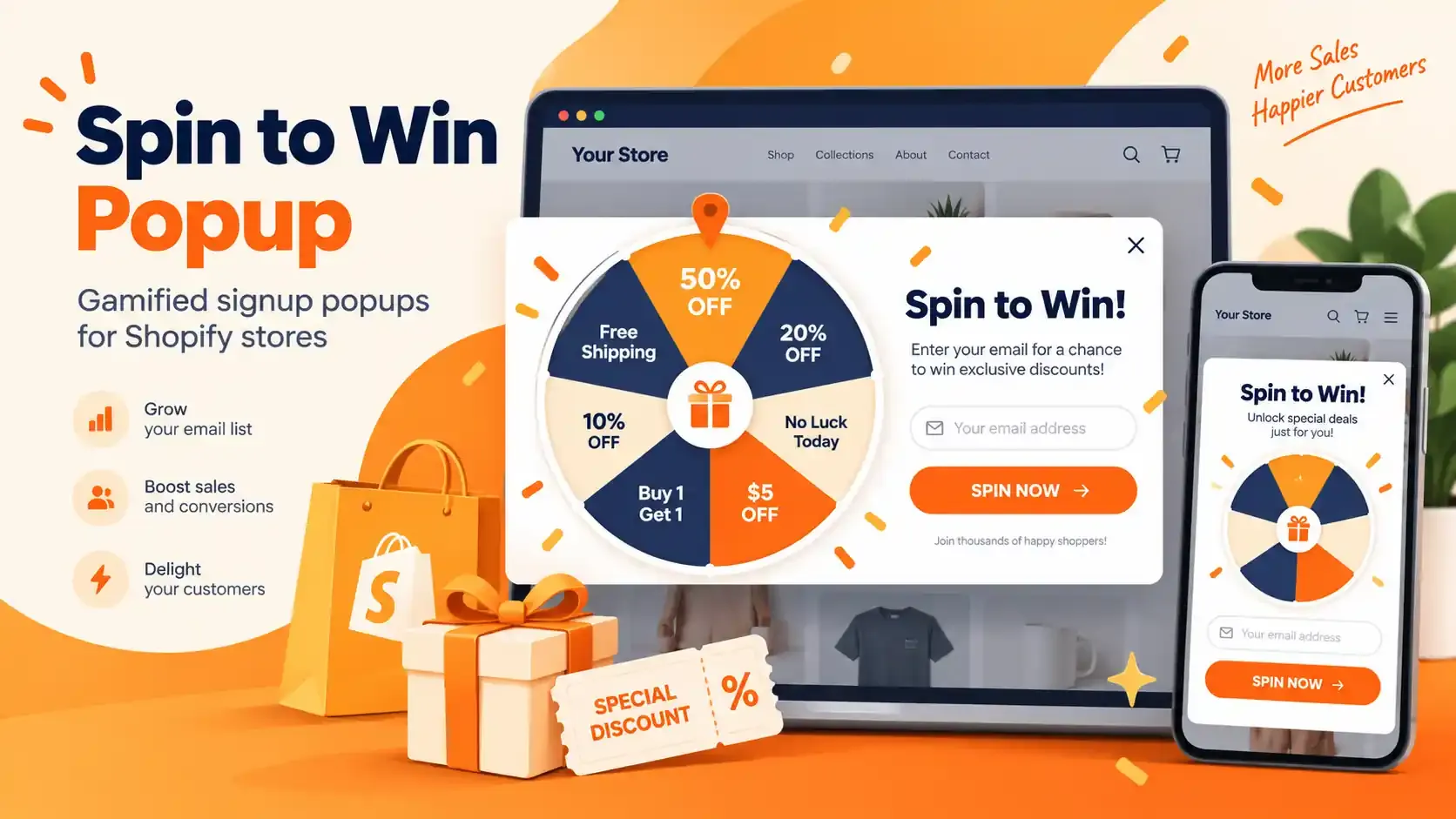
Spin to Win Popup: How Shopify Stores Can Grow Email Signups and Sales
Learn how spin to win popup actually work! Discover the best prizes and perfect timing strategies to boost conversions and grow Shopify sales.
Read Article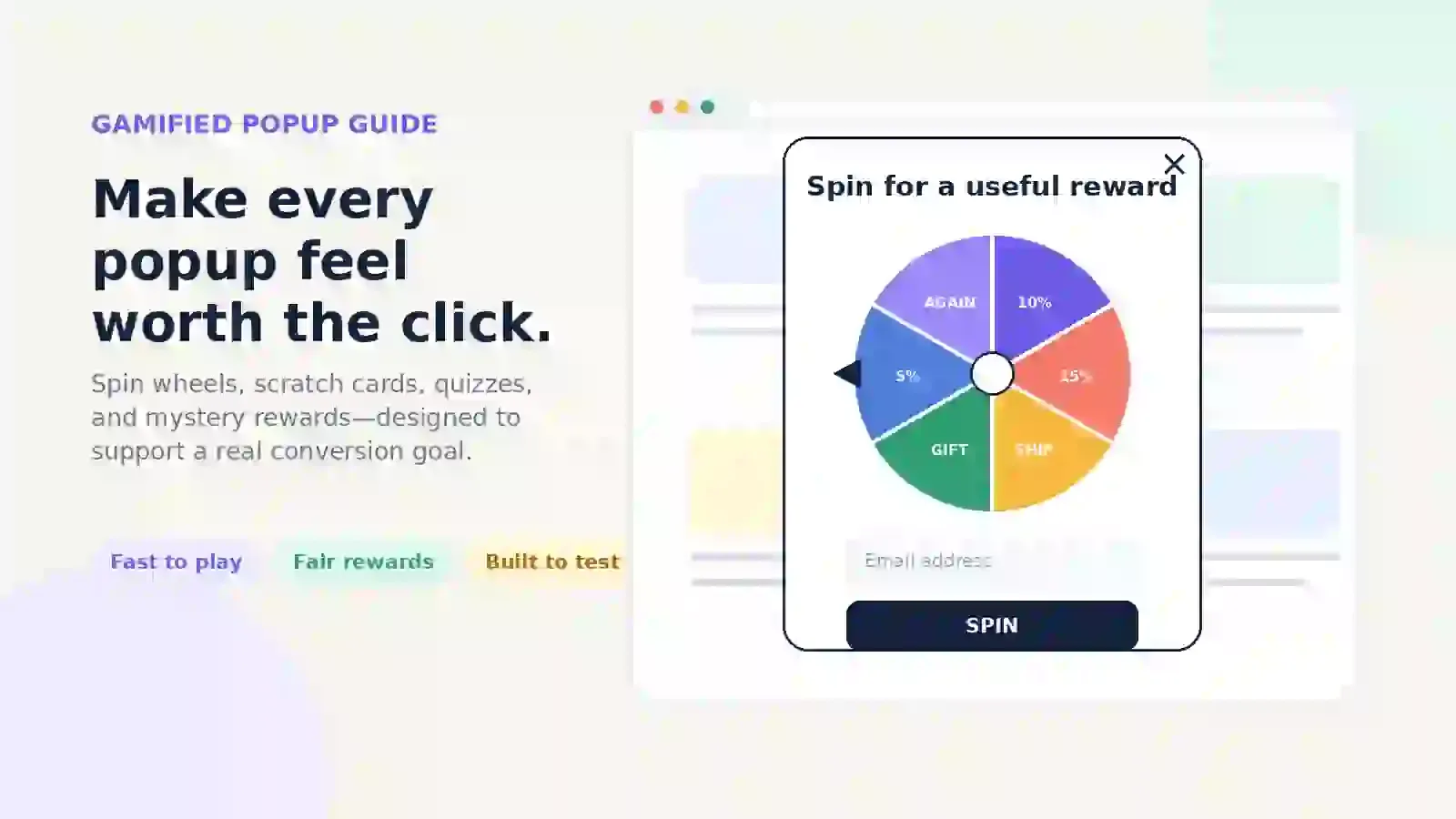
Gamified Popup Guide: Types, Examples & Best Practices
Learn how gamified popup help Shopify stores grow leads and sales. Compare game types, prize ideas, targeting tips, and best practices.
Read Article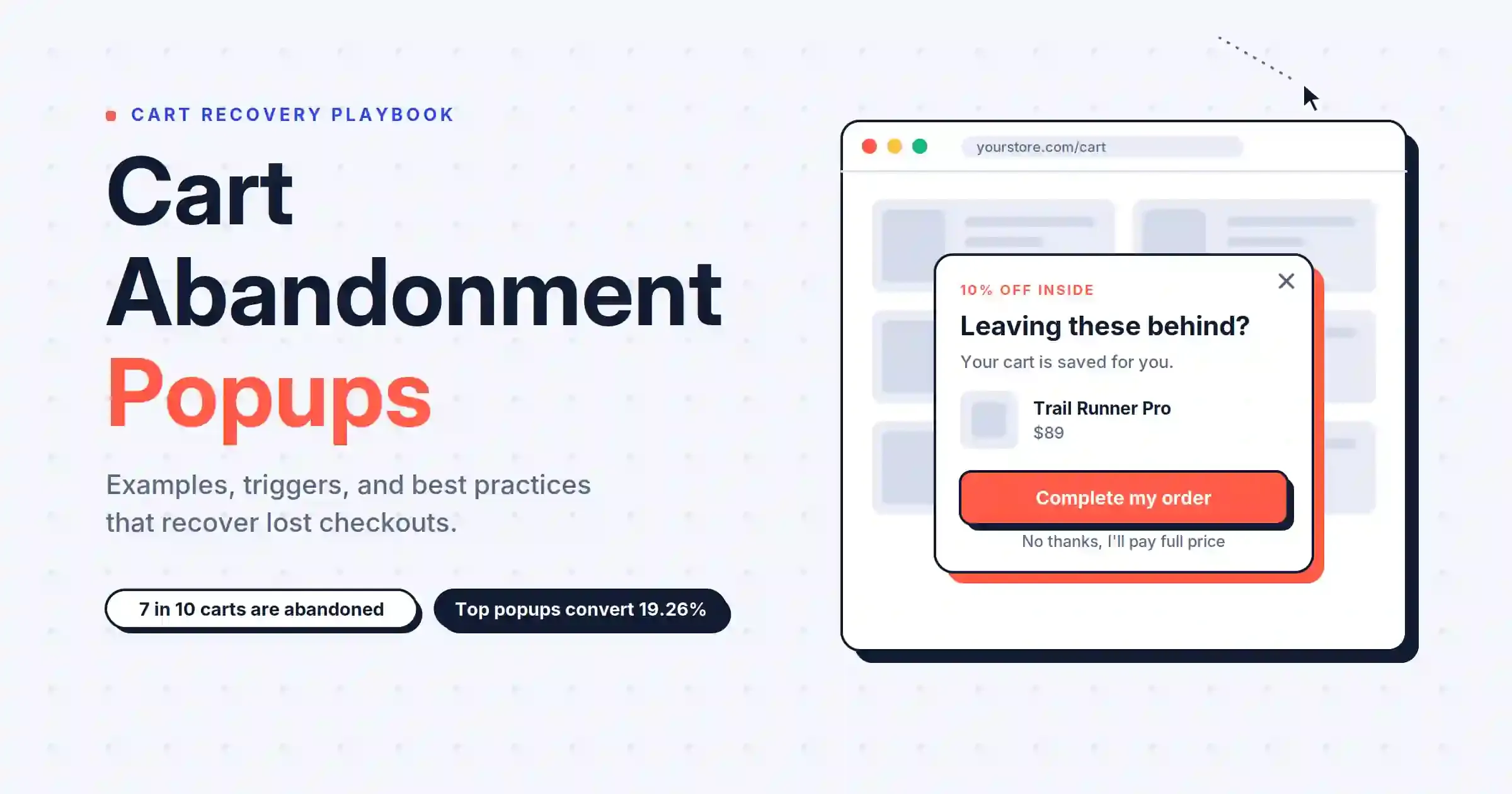
Cart Abandonment Popup: 7 Examples & Best Practices (2026)
Cart abandonment popups catch shoppers before they leave. Get 7 examples, trigger types, discount rules, and copy formulas that convert.
Read Article